See Also:PowerPoint and Alpha Channels | Photoshop TIF and Alpha Channel Export for PowerPoint
In this tutorial, we will learn how to export a PNG graphic from Microsoft Expression with an alpha channel that PowerPoint can import. We have used the new Microsoft Expression 3.3 for Macintosh. The PowerPoint version used is PowerPoint X for Macintosh. The same techniques should work with the Windows version.
Presently, you can download free versions of Expression for the Mac and Windows from the Microsoft website.
- Launch Expression and choose the File | New option. Expression will create a new document.
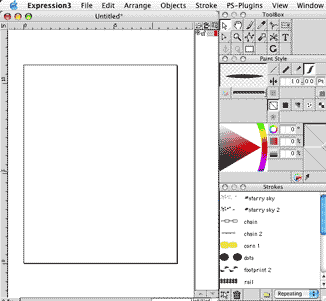
- Open or create a simple drawing that uses a transparent gradient. For this tutorial, we created three rectangles with a red to transparent fill. We also applied a repeating Stars stroke to the rectangles. Save your drawing.

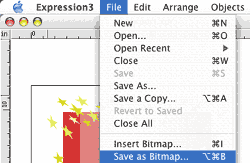
- Choose the File | Save as Bitmap (see screenshot).
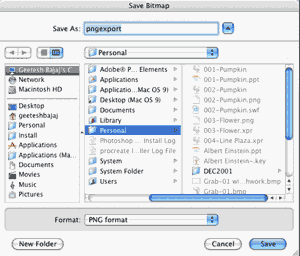
- Choose a name and location to save the graphic. Within the Format drop down box, choose PNG. Click the Save button.
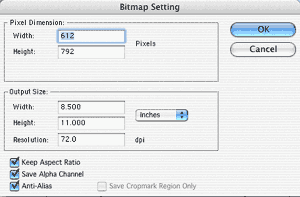
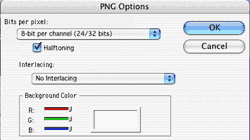
- You'll now see the Bitmap Setting dialog box. Check all the three options listed on the bottom left: Keep Aspect Ratio, Save Alpha Channel and Anti-Alias. Click OK here. In the next dialog box, click OK again to save the drawing as a PNG bitmap (see both screenshots). Save your document and exit Expression.
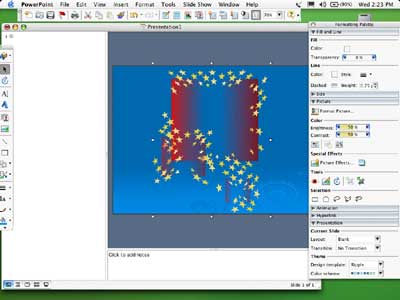
- In PowerPoint, create a new presentation or open an existing one. On a blank slide, just insert the exported PNG using the Insert | Picture command. The screenshot below shows you how the transparent areas reveal themselves.
Back
You May Also Like: Key Steps for Feedback When Someone Has Done a Dreadful Job
| Bahrain Flags and Maps PowerPoint Templates
Popular Posts

10 Tips for Pecha KuchaRead 10 amazing Pecha Kucha tips that will help you create and deliver a better Pecha Kucha presentation.
Pictures in Presentations
Is a picture is worth a thousand words? You probably have heard this adage so often that we decided not to repeat this phrase throughout
this book! Now here’s some more info: the human brain uses a larger part of its area to store visual information rather than textual content.
And that’s possibly because a picture describes so much more than text.
Go and get a copy of our Pictures in Presentations
ebook.


