There may be many times when you need to convert a QuickTime movie to another file format so that you can use it in on a PowerPoint slide or another program that doesn't work with the QuickTime format. In this tutorial, we'll show you how you can use RAD Video Tools, a free program to do the conversion from QuickTime to AVI files that are more PowerPoint friendly.
Here's what you need to get started:
- Before you begin, make sure you have QuickTime installed so that you have the required codecs available on your system. You can get QuickTime from the Apple web site.
- And you'll also need to download and install RAD Video tools which you can download from here.
- You'll also need a sample QuickTime movie file to convert. You can get many QuickTime sample files online, or you could use the sample file that is included within the QuickTime program folder.
Here's what you should know:
- QuickTime files normally have the MOV file extension although newer QuickTime files also use the MP4 file extension.
- AVI files are a standard video file format for Windows.
Follow these steps to do the conversion:
- Launch RAD Video Tools by choosing the Windows Start Menu. You'll find this option in All Programs | Bink and Smacker | RAD Video tools. This will bring up a navigation dialog box. Navigate to the folder that contains your QuickTime movie, select it and click the Convert button (highlighted in red within Figure 1).
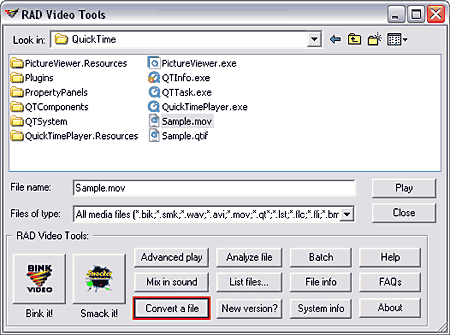
Figure 1: Select a QuickTime file to convert Note: You may not see the MOV file extension in the dialog box shown in
Figure 1 by default. To view file extensions, you can learn
how to enable them here.
- This brings up the Bink Converter dialog box that you can see in Figure 2. It might be that AVI is already selected as the output format here. If it is not, just click the Output Type button to see the flyout list that you can see in Figure 2, and then select the AVI file option. Then click the Convert button (highlighted in red within Figure 2).
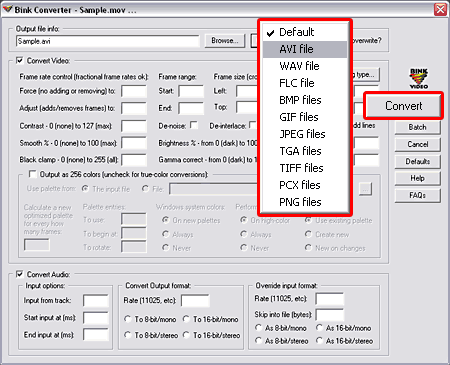
Figure 2: Convert the video file format - This should bring up two successive dialog boxes. The top box lets you choose the video codec (compressor). The codec options available in this list depend upon which codecs are installed on your system. Microsoft Video 1 is a good choice though (see Figure 3). Click OK.
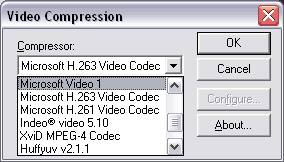
- This gets you to the Converter dialog box that shows the progress of the actual conversion. Once the conversion is done, it provides info as you can see in Figure 4.
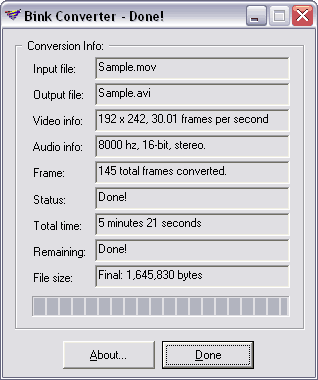
- Thereafter you can test the converted AVI file by playing it in a AVI playing application such as Windows Media Player.
Note: Once you have converted the file. Do experiment with codecs other than Microsoft Video 1 to study how large the output files are, and how good the converted quality is.


